Installing MS Windows 10
Although the vast majority of MS Windows users have already upgraded to MS Windows 10, thanks to Microsoft's aggressive campaign and the fact that MS offered the upgrade for free and in a semi-automatic manner (available until 29 July 2016), this time the story covers two cases I wanted to share - my observations and discoveries when it was necessary to transfer and reinstall MS Windows 10.
Cloning Windows from a Regular HDD to an SSD
Situation description: ASUS X550L with pre-installed MS Windows 8.1 on a regular (HDD) 1TB drive. Over time Windows 8.1 was updated to Windows 10. Licence type - OEM with the registration key embedded in the BIOS, meaning the licence is preserved when changing the hard drive. This licence can also be "extracted" using the Windows OEM Product Key Tool [1], but I found that out later :).
Goal: Transfer "everything" to a newly purchased Samsung EVO 850 SSD, 500GB (actually 465GB).
Since the system had accumulated various programs with their own settings during use, and transferring them simply would be quite problematic, the ideal solution would be disk cloning. However, I was initially quite sceptical about this procedure, as the drives differ in capacity and 1:1 copying would not be possible.
The disk partitioning is as follows:

* The SSD visible in the image (Disk 3) is not empty, as the screenshot was taken at the end of the process.
The problem is that OEMs of this type don't come with an installation disc; the data needed for Windows recovery/reinstallation is stored in the last 20GB partition on the drive.
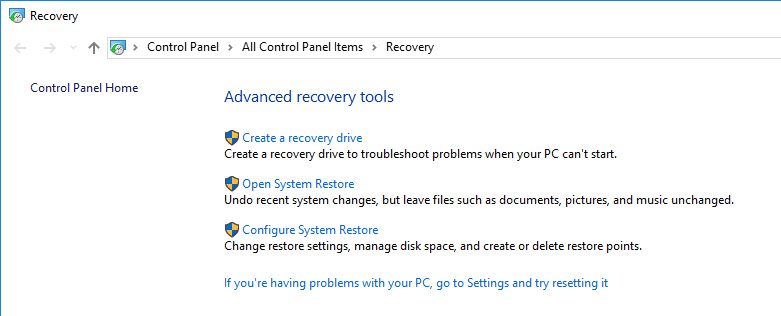
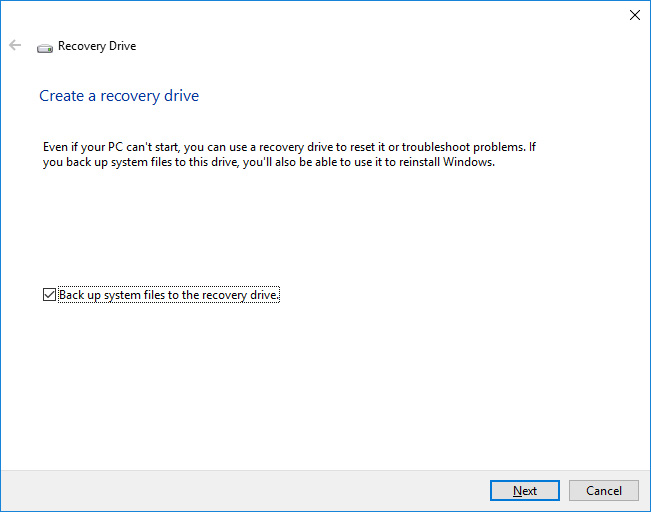
Windows has several system recovery tools, one of which inspired confidence: Recovery / Create a recovery drive, which requires at least a 4–16GB USB flash drive and is bootable. In practice this solution did not work, because when connecting a new, unformatted drive, this tool would either display the error "A required drive partition is missing" or report that installation files could not be found. This is possibly related to the recovery partition containing Windows 8.1, while the upgrade is to Windows 10, since according to descriptions it is possible in the Windows 8.1 environment using this tool to configure the recovery image to also include the installation.
Instructions are available online for creating the missing partition via the command line, but deeply disappointed by Microsoft's ability to restore anything, I went looking for another solution.
ASUS offers a tool called Backtracker [2] which, judging by the description, allows creating a recovery disc (recovery image) enabling the recovery partition to be transferred/used onto a new drive. This solution I ultimately did not try, as I was gradually becoming convinced that it is possible to clone a drive even when the drives are different sizes.
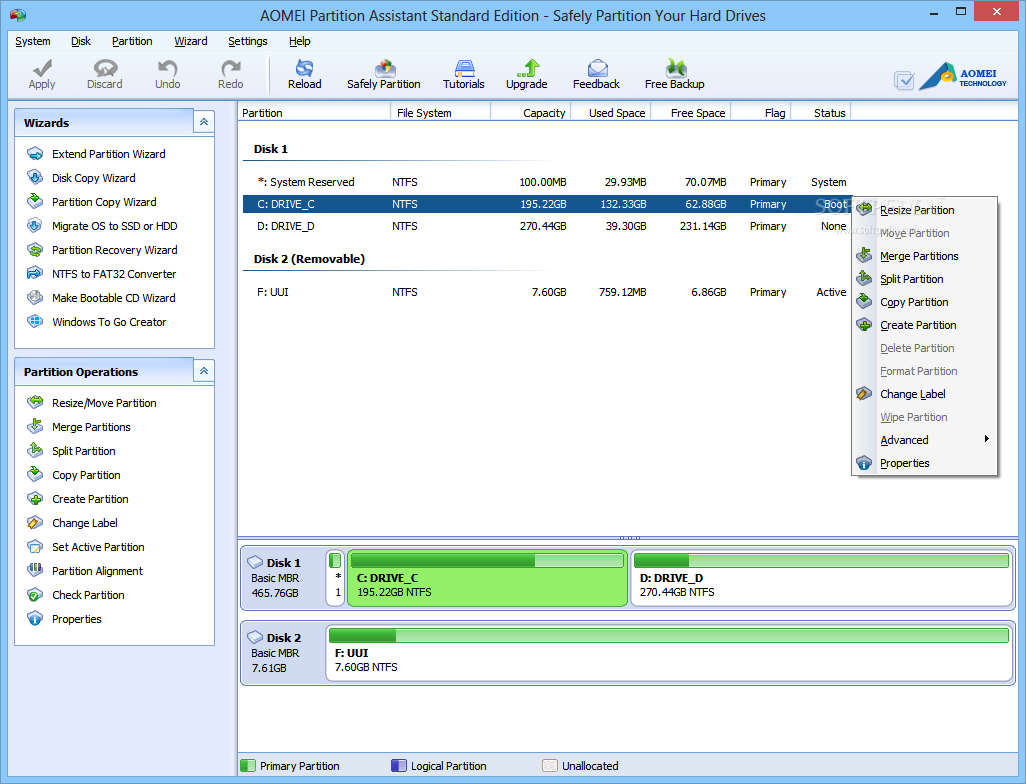
In my search I found several free tools (EasyUS, AOMEI Backupper, AOMEI Partition Assistant, Macrium Reflect) that allow transferring an existing system drive to an SSD, regardless of the size difference.
How it works:
- install the program,
- connect the external drive, specify where to copy (the OS partition cannot be chosen)
- the computer restarts and clones in pre-Windows mode.
I did not try this because:
- there was no way to connect the SSD as an external drive;
- I didn't want to dismantle the notebook to connect the SSD in place of the CD drive, for instance;
- I really did not want to damage the only working system drive, since real men don't make backups :)
HDD Cloning
After various attempts, one solution that worked.
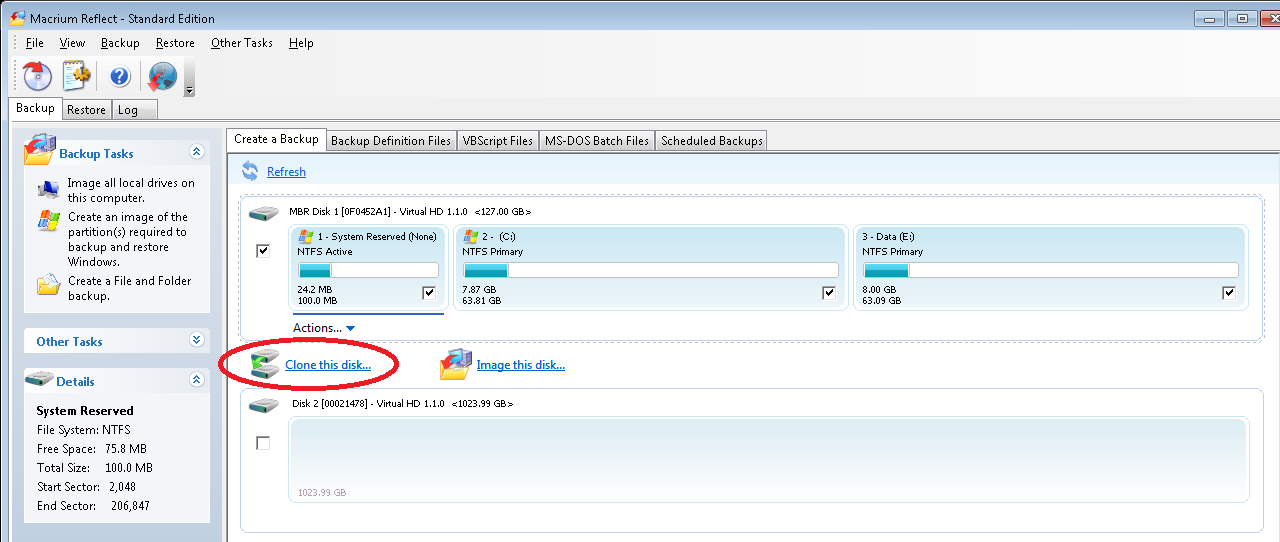
- Using Macrium Reflect, select Clone disk and
- in the next step choose which partitions to transfer.
- Select the first one (the 100MB one needed for anything to boot at all) and the OS: the 372GB one (see image above).
- The next step shows a projection onto the SSD drive, where the skipped partitions appear as unallocated space.
- Macrium Reflect offers to "stretch" the 372GB partition to the right. On the left remains the unused space of two partitions ~1GB.
Once the disk was cloned, which happened relatively quickly (10–20 min), we try to boot and... voilà! It works!
- Using AOMEI Partition Assistant, stretch the large partition to the left as well, filling all unoccupied drive space (recovering 1GB).
Windows 10 with a Windows 8.1 Key
Situation description: A computer has Windows 8.1 installed. A licence sticker is affixed to the box, but the installation disc has gone missing somewhere. Over time it was updated to Windows 10. The system drive is a 120GB SSD.
Goal: Replace the SSD drive with a larger one and reinstall - or as people say: put on a clean system.
I had already come across the fact that Samsung has "data migration software" [3], a tool that allows cloning the existing SSD to the new one (Samsung only). However, this solution is not suitable as the goal is to reinstall.
Having convinced myself that a Windows 8.1 licence key could be used to install (and activate) Windows 10 as well, I went looking for a Windows 10 MSDN, which turned out to be quite problematic as Microsoft itself does not offer (I could not find) downloading the installation disc, and what is available in the "free market" is mostly cracked installations.
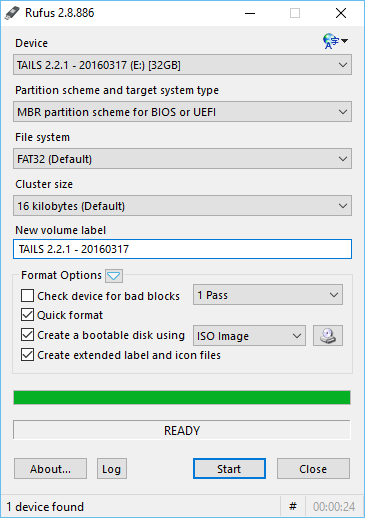
I found some MSDN. Using the tool Rufus [5], I created a bootable USB from the ISO. I booted, entered the Windows key and... nothing. It doesn't work.
Solution that worked. Microsoft does in fact offer downloading the installation disc using the Windows 10 Media Creation Tool. With it the installation can be written directly to USB, or saved as an ISO. I saved it, wrote it, booted, entered the Windows 8.1 key and... voilà! It works!
After a while I checked This PC / Properties - it shows that Windows is activated and offers no other actions. Presumably everything is in order.
Sources and external links:
[1] Windows OEM Product Key Tool - https://neosmart.net/blog/2014/windows-10-embedded-product-key-tool/
[2] ASUS Backtracker - https://www.asus.com/support/faq/1008641
[3] Samsung Data Migration Software for Consumer SSD - http://www.samsung.com/semiconductor/minisite/ssd/download/tools.html
[4] Windows 10 Media Creation Tool - https://www.microsoft.com/lv-lv/software-download/windows10
[5] Rufus - https://rufus.akeo.ie/
comments