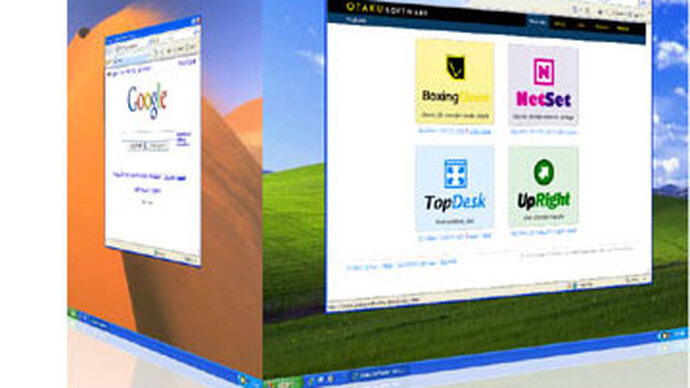
3D Desktop for MS Windows
How widely 3D desktop will become popular will be determined by several factors, the most important being how convenient such a surface will be to work with. From first experience I didn't notice a significant difference between placing a program on another desktop versus minimising it. Because humanly speaking, you feel the urge to look at the monitor from the side and see what's happening on the adjacent desktop.
Linux
Linux's biggest trump card has always been the fact that the graphical environment was both separate from the system and divided into two levels - the X window system and the graphical environment. The X window system is also known as xorg, which provides the link between the computer's resources and the graphical environment. xorg itself does not provide the graphical environment (xterm?).
The graphical environment is what the user sees and uses. The most well-known are Gnome and KDE. Graphical environment developers can therefore concentrate more on graphics and effects. This separation allowed graphical environments to be both richer in effects and less resource-hungry, as well as enabling entirely different approaches - such as creating a 3D desktop, or the cube.
Starting with KDE version 4 (currently version 4.4 is available), the 3D desktop or cube effect comes bundled. If the system has sufficient resources (OpenGL is required), this effect can be activated in the system settings and switched using Ctrl+F11.
Windows
Windows offers none of the above, although MS Windows Vista did introduce some changes with the alternative Alt-Tab layout (activated with Win+Tab).
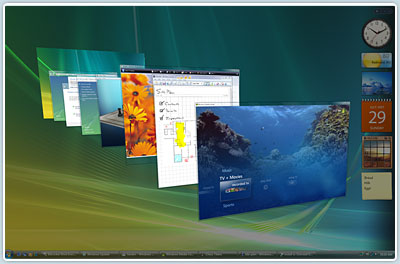
Be that as it may, it is only an effect and provides no real practical advantage at work. Clever folk have gone further and created a 3D Desktop that can be installed as a separate program.
I will review 3 such programs:
- DeskSpace (14-day trial or $24.95) [1]
- CubeDesktop (120min trial or €19.95) [2]
- Shock 4Way 3D (free!) [3]
Oracle VM VirtualBox and Windows XP SP3 were used as the test environment. Just in case, the latest DirectX was also installed.
DeskSpace
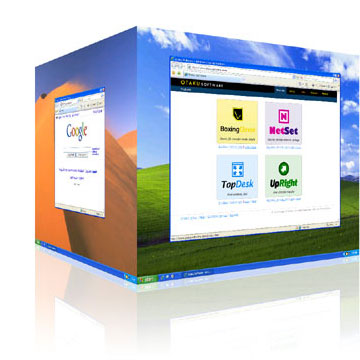
Very simple installation, after which no system restart is required. On Windows XP, 6 icons appear in the system tray. You can switch between desktops either by clicking on these icons, or by activating the desktop cube view, which can also be done with the mouse. There are also keyboard shortcuts, which can be reconfigured as needed.
CubeDesktop
In terms of appearance and feature set, a slightly more advanced 3D desktop program. True, on the emulated Windows XP the nice animation was absent (white squares appeared instead). However, in addition to the Cube effect there are also Flip, Cylinder and Carousel. Extremely short trial time - only 120 minutes.
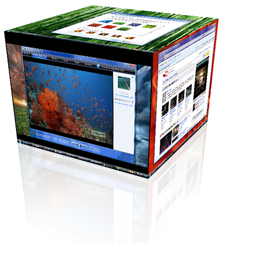
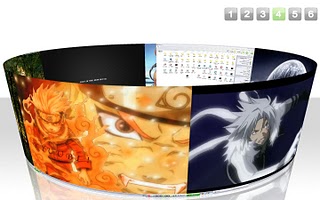

At first glance an extremely modest little program, although functionally it offers 4 desktops that can be switched either with the mouse or a key combination. Other desktop management effects are also offered. Several articles mention that the program was built based on another functionally similar 3D desktop program - yodm-3d [4].
Key advantage - the program can be used for free.
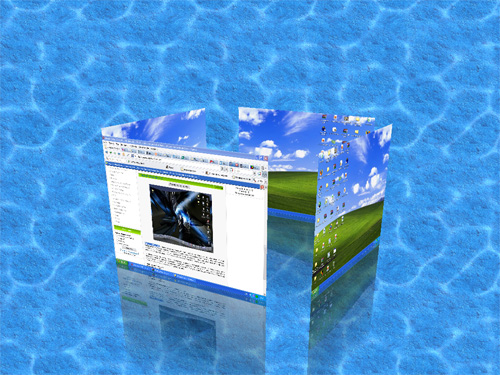
3D Desktop and the touchscreen.
How widely 3D desktop will become popular will be determined by several factors, the most important being how convenient such a surface will be to work with. From first experience I didn't notice a significant difference between placing a program on another desktop versus minimising it. Multiple desktops are nothing new - for example, Linux KDE had 4 virtual desktops available for quite some time already, just not as elegantly switchable.
Obviously the ideal implementation of a 3D desktop would involve both a touchscreen and a proper 3D display. Because humanly speaking, you feel the urge to look at the monitor from the side and see what's happening on the adjacent desktop.
Maybe something like this?
[1] http://www.otakusoftware.com/
[2] http://www.thinkinbytes.com/en/home/index.php
comments